Storage
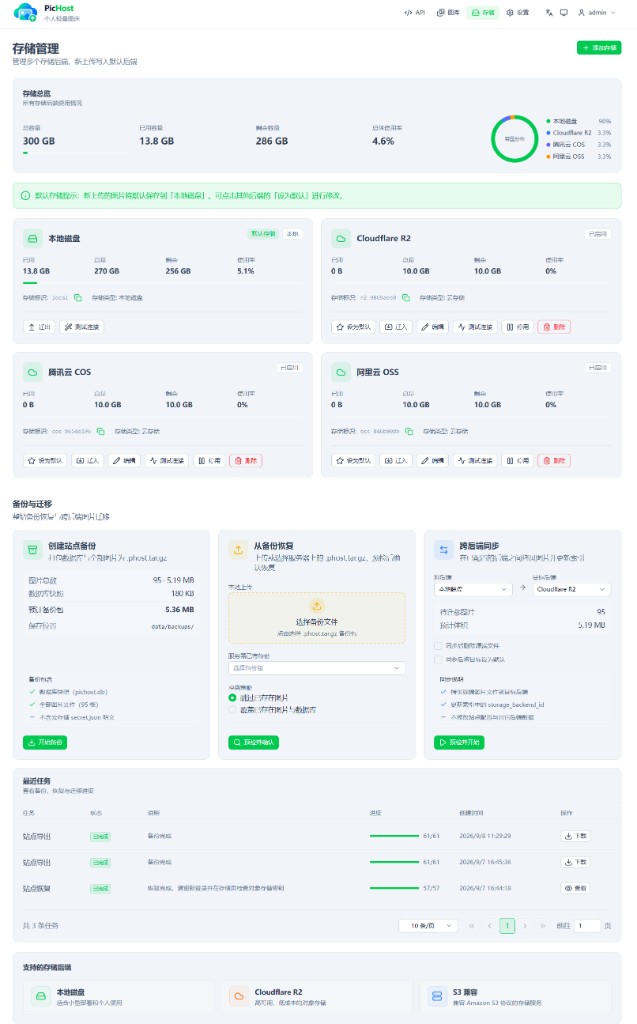
PicHost supports local disk, S3-compatible object storage (Cloudflare R2, Tencent COS, Alibaba OSS, AWS S3, etc.), and a Telegram channel or group. Admins manage backends at Storage (/storage); new uploads go to the default backend. The page shows a storage overview (total, used, remaining, usage rate, capacity chart) plus per-backend cards and supported backend types.
Layout (local)
/data
├── pichost.db          # SQLite: users, sessions, settings, storage_backends, images index
└── images/ # All files when using local backend- New uploads:
images/randomId.webporimages/YYYY/MM/randomId.webp(flat mode in Settings) - Migrated legacy:
images/blog/...and similar - With cloud backends, blobs live in the bucket; index stays in SQLite
images
All keys start with images/. The upload API does not accept a folder parameter.
Classification uses per-user tags in SQLite (tags / image_tags); disk paths are unchanged. See API.
Adding a backend
- Sign in as admin → Storage → Add backend.
- Choose local disk, S3-compatible (R2 / COS / OSS presets), or Telegram channel.
- Enter connection details (bucket, endpoint, keys, or Bot Token / Chat ID).
- Set as default so new uploads use it.
New backends get an auto-generated storage ID prefix: local for disk; r2-* for R2; cos-* for COS; oss-* for OSS; s3-* for AWS S3 and custom S3-compatible endpoints; tg-* for Telegram (immutable after creation; the image index references this ID).
Cloudflare R2
| Field | Value |
|---|---|
| Endpoint | https://<account_id>.r2.cloudflarestorage.com |
| Region | auto |
| Bucket | Your R2 bucket name |
| Keys | R2 API token access / secret |
The cloudflare branch streamlines R2-only deploys; see branch notes on the docs overview.
Telegram channel or group
A bot posts each image into a channel or group (private chats work). Visitors still load PicHost URLs; the app never redirects to a Telegram file URL.
- Create a bot with @BotFather and copy the token.
- Make the bot an admin of the channel or group (post messages; also grant delete messages if gallery deletes should remove the Telegram post).
- On the Storage page choose Telegram channel, then enter the Chat ID (supergroups and channels are usually
-100…), the bot token, and a quota. - If the server cannot reach
api.telegram.orgdirectly, set an optional HTTP/HTTPS API proxy (for examplehttp://127.0.0.1:7890).
Limits and behavior:
- Practical per-file cap is about 20MB (the smaller of this and the site upload limit applies)
- About 20 messages per minute per chat; faster batches fail with a retry hint
- Serving mode is always proxy
- Gallery delete tries to delete the Telegram message. If an upload reaches the chat but PicHost cannot store a file id, that message is removed when possible
- Full backups download files through the bot and are subject to the rate limit. Packages do not include the bot token; enter it again after restore. Restoring onto a default Telegram backend re-uploads images into the chat
Environment variables (optional)
Some installs seed a default S3 backend via STORAGE_BACKEND=s3, S3_ENDPOINT, S3_BUCKET, S3_ACCESS_KEY, S3_SECRET_KEY, S3_REGION. UI-configured backends live in SQLite alongside env-based defaults.
URL modes
| Mode | Behavior |
|---|---|
| proxy | Serve via PicHost (GET /images/...) |
| public | 302 redirect to bucket/CDN public URL |
Copied links use IMAGE_BASE_URL. “Hide folder prefix” may shorten URLs; the server resolves by path or basename.
Usage & gallery filter
- Per-backend usage on the Storage page
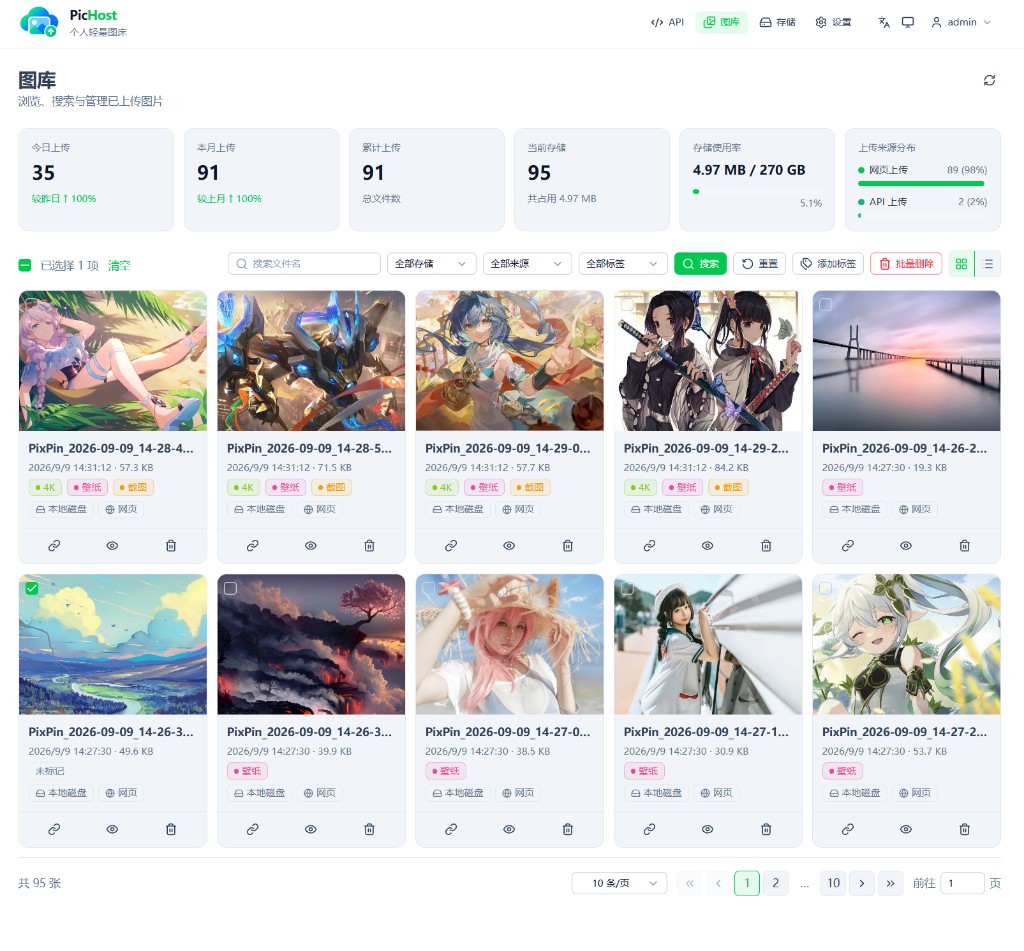
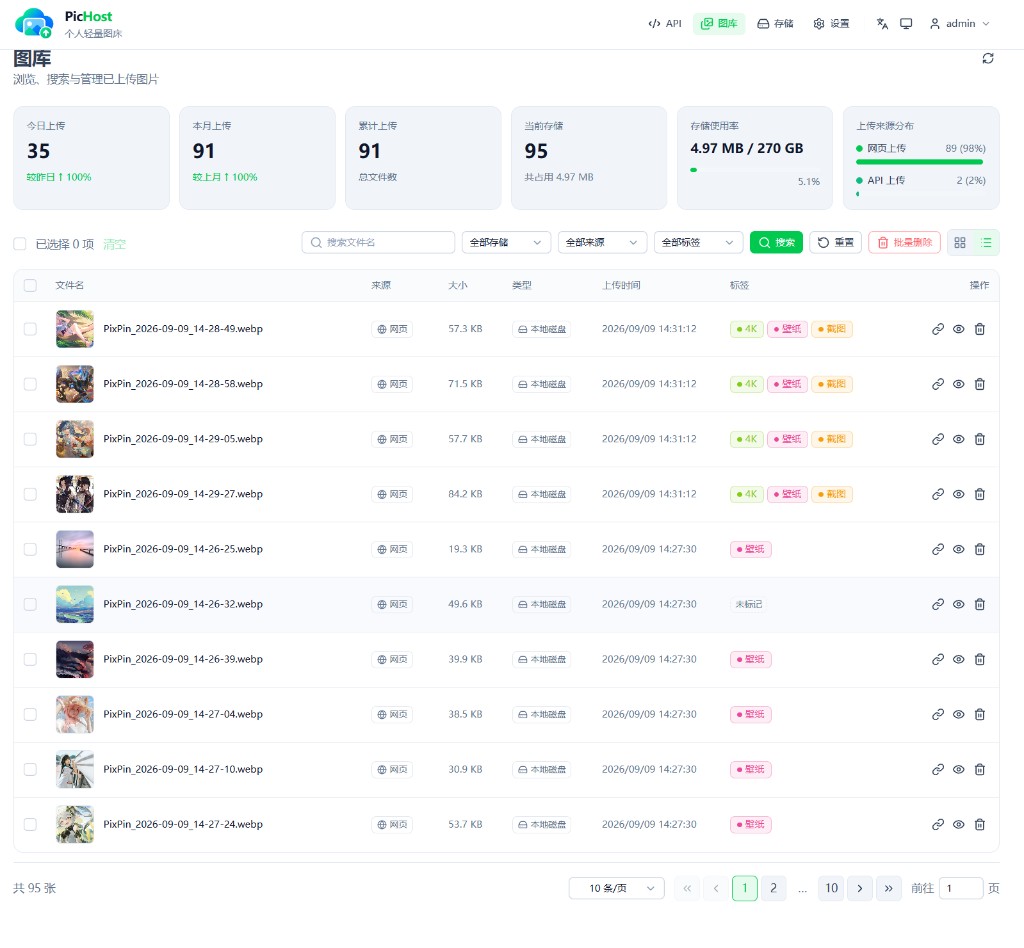
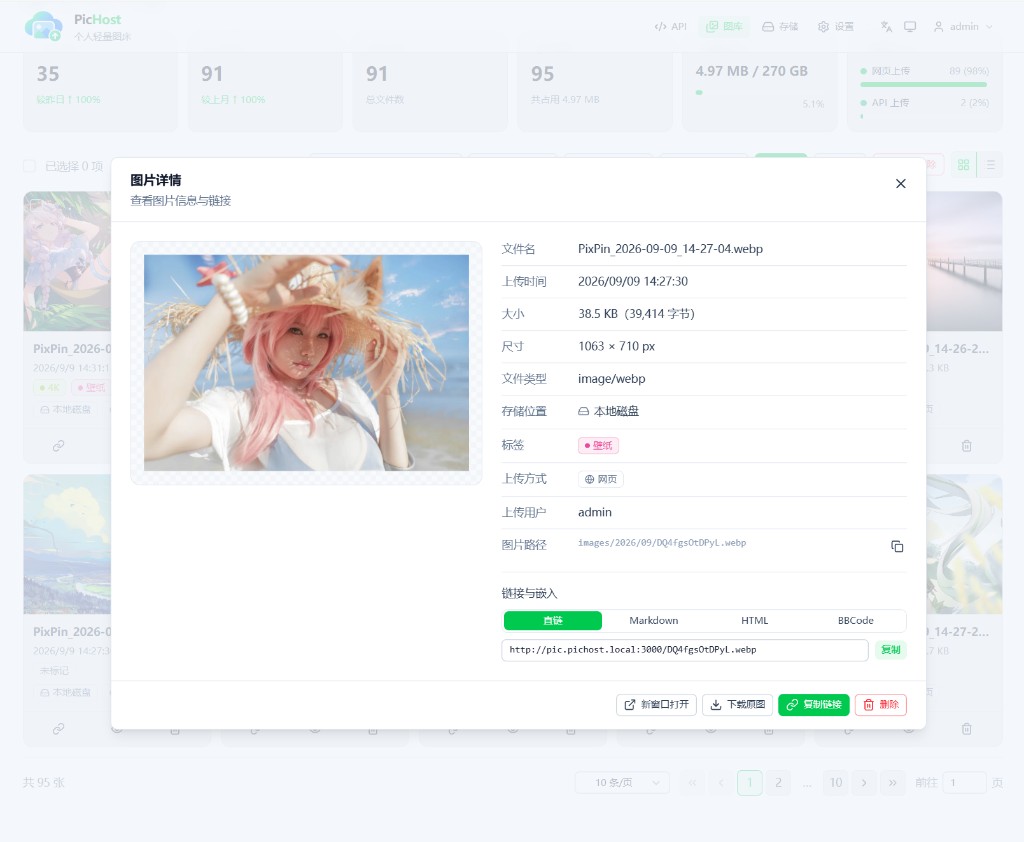
- Gallery filters by storage backend, upload source, and tags; grid/list view toggle; click a thumbnail for the detail modal (dimensions, storage path, tags, link formats)
Backup & migration (v1.3.0+)
The Backup & migration panel has three action cards and a paginated Recent jobs table below:
| Feature | Description |
|---|---|
| Create site backup | Export .phost.tar.gz with pichost.db and all images (including objects on cloud backends); shows estimated size and package contents |
| Restore from backup | Upload locally or pick an existing package under data/backups/, preview, then confirm; skip or overwrite conflicting images |
| Cross-backend sync | Copy images between configured backends and update the index; shows pending count/size, dry-run, optional delete-source and set-default |
- Exports are saved under
data/backups/; only one backup/migration job may run at a time - Job list supports pagination; download exports, view restore summaries, retry failed sync jobs
- Packages do not include cloud storage secrets — re-enter them on the Storage page after restore
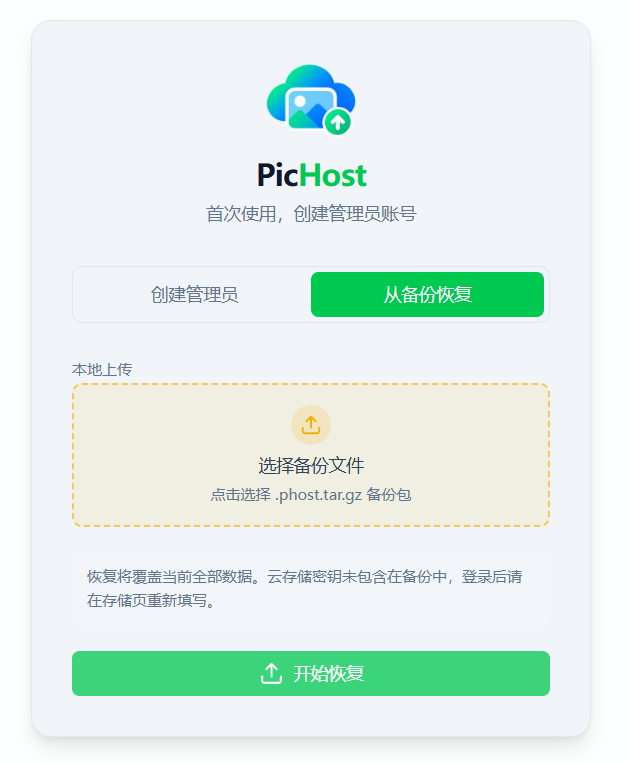
- Uninitialized instances can use the Restore backup tab on
/setup(always overwrite mode)
CLI
docker exec pichost backup-export
docker exec pichost backup-restore /data/backups/pichost-xxx.phost.tar.gz
docker exec pichost backup-restore /data/backups/pichost-xxx.phost.tar.gz --overwrite
docker exec pichost storage-sync --from local --to s3-xxx --dry-run
docker exec pichost storage-sync --from local --to s3-xxx --set-default
Local development (project root):
npm run backup-export
npm run backup-restore -- data/backups/pichost-xxx.phost.tar.gz
npm run storage-sync -- --from local --to s3-xxx --dry-run
Manual backup
You can still back up data/images/, data/pichost.db, and bucket objects directly; prefer the full-site export above.